" height="26.80529977783203px" id="tymKb8bqC" width="128.00300311279295px"/><path d="M 0 2.417 L 0 0 L 12.909 0 L 12.909 2.417 Z" fill="rgb(126, 78, 253)" height="2.417099999999998px" id="aYr4em6zK" transform="translate(128.341 22.325)" width="12.908999999999992px"/></svg>)

"/><stop offset="1" stop-color="rgb(118, 37, 250)"/></linearGradient></defs><g d="M 19.242 21.22 L 19.362 6.204 L 19.272 6.204 L 13.757 21.22 L 10.161 21.22 L 4.796 6.204 L 4.706 6.204 L 4.825 21.22 L 0 21.22 L 0 0 L 7.283 0 L 12.109 13.607 L 12.229 13.607 L 16.844 0 L 24.247 0 L 24.247 21.22 Z M 26.421 26.113 L 26.421 23.445 L 41.407 23.445 L 41.407 26.113 Z" fill="transparent" height="26.112508199679183px" id="DvfaAIHYn" width="41.40731898311435px"><path d="M 19.242 21.22 L 19.362 6.204 L 19.272 6.204 L 13.757 21.22 L 10.161 21.22 L 4.796 6.204 L 4.706 6.204 L 4.825 21.22 L 0 21.22 L 0 0 L 7.283 0 L 12.109 13.607 L 12.229 13.607 L 16.844 0 L 24.247 0 L 24.247 21.22 Z" fill="rgb(46, 46, 46)" height="21.220180016149442px" id="pLsxRCobd" width="24.247352589074694px"/><path d="M 0 2.668 L 0 0 L 14.986 0 L 14.986 2.668 Z" fill="url(%23yD9d4I5GR-3279285344-linear-gradient)" height="2.6675085048549647px" id="yD9d4I5GR" transform="translate(26.421 23.445)" width="14.986002836263765px"/></g></svg>)

Saad Mouaouine
You hit publish, open LinkedIn on your phone, and your hook is cut off mid-sentence. The image is cropped. There’s a typo in the second line, too.
By the time you catch it, the algorithm has already started distributing a broken post, and editing it resets that reach.
The fix takes less than a minute: preview your LinkedIn post before you publish it. This guide shows you exactly how.
Short Answer: LinkedIn doesn't have a native post previewer. The draft composer gives you a rough idea, but it won't show you mobile rendering or where the "See more" cutoff actually falls. Use MagicPost's free LinkedIn post previewer to see exactly how your post looks before it goes live.
Can You Preview a LinkedIn Post Before Publishing?
No. LinkedIn doesn’t offer a native “post preview” feature on either desktop or mobile. When you draft a post, you only see the editing box, not a true preview of how it’ll appear once published.
This rough version of how your post will appear in the feed has significant blind spots:
No mobile view: The draft view only shows desktop. More than half of LinkedIn traffic comes from mobile, and line breaks, image crops, and hook cutoffs can all look completely different on a smaller screen.
No accurate “See more” simulation: LinkedIn’s draft view doesn’t reliably show where your hook gets cut off. You won’t know if your opening line earns the click until after you’ve published.
No media preview for carousels: If you’re attaching a carousel or document, the draft view won’t show you how individual slides render in the feed.
Here’s what the native LinkedIn draft preview looks like:
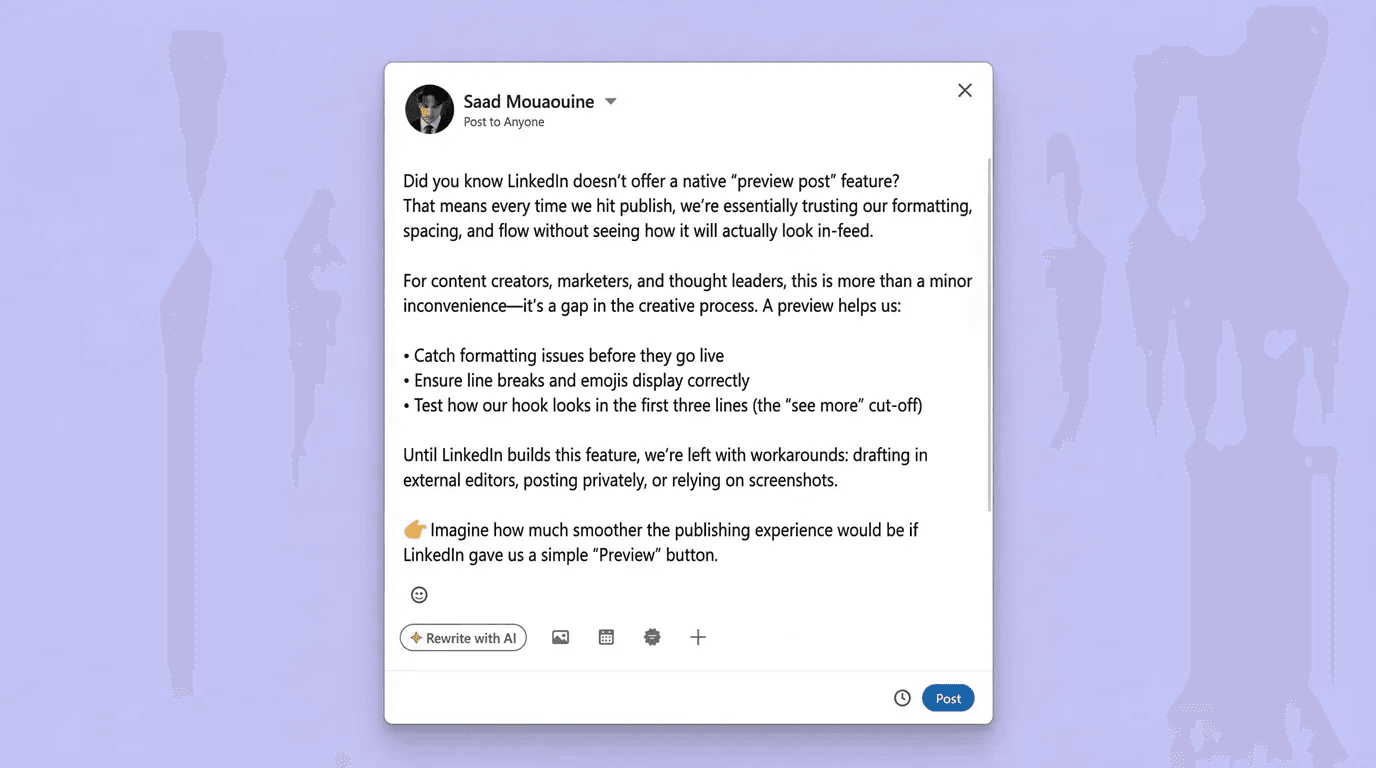
For a quick sanity check, it’s better than nothing. For anything you’ve spent real time on, it’s not enough.
Why Previewing Your LinkedIn Post Matters
Previewing your LinkedIn post matters for several reasons. Here they are:
Your Hook Is Everything
LinkedIn cuts your post off after two or three lines with a "See more" prompt. If your opening line isn't fully visible, or if it reads awkwardly at the cutoff point, most people won't click through.
→ Previewing lets you see exactly where the cut happens and adjust before it costs you reach. See what makes a strong LinkedIn hook work and why the first line carries almost all the weight.
Images and Carousels Get Cropped
LinkedIn applies different crop ratios depending on the device, post format, and whether you're posting as a personal profile or a company page. An image that looks fine in the composer can render with key content cut off once it's live.
→ Previewing on both desktop and mobile catches this before your audience does.
Editing After Publishing Hurts Reach
LinkedIn's engagement algorithm re-evaluates your post when you edit it and typically resets its distribution to a smaller initial audience. A post that was gaining traction stops. This makes pre-publish checking more than just cosmetic; it protects your reach.
⚠️ Warning: Don't rely on editing as a safety net. Once a post is live, even a small correction can interrupt the algorithm's distribution window. Get it right before you publish.
How to Preview Your LinkedIn Post with MagicPost
MagicPost's free LinkedIn post previewer fills the gaps the native view leaves open. It shows you desktop and mobile views side by side, simulates the "See more" cutoff accurately, and requires no account or payment to use.
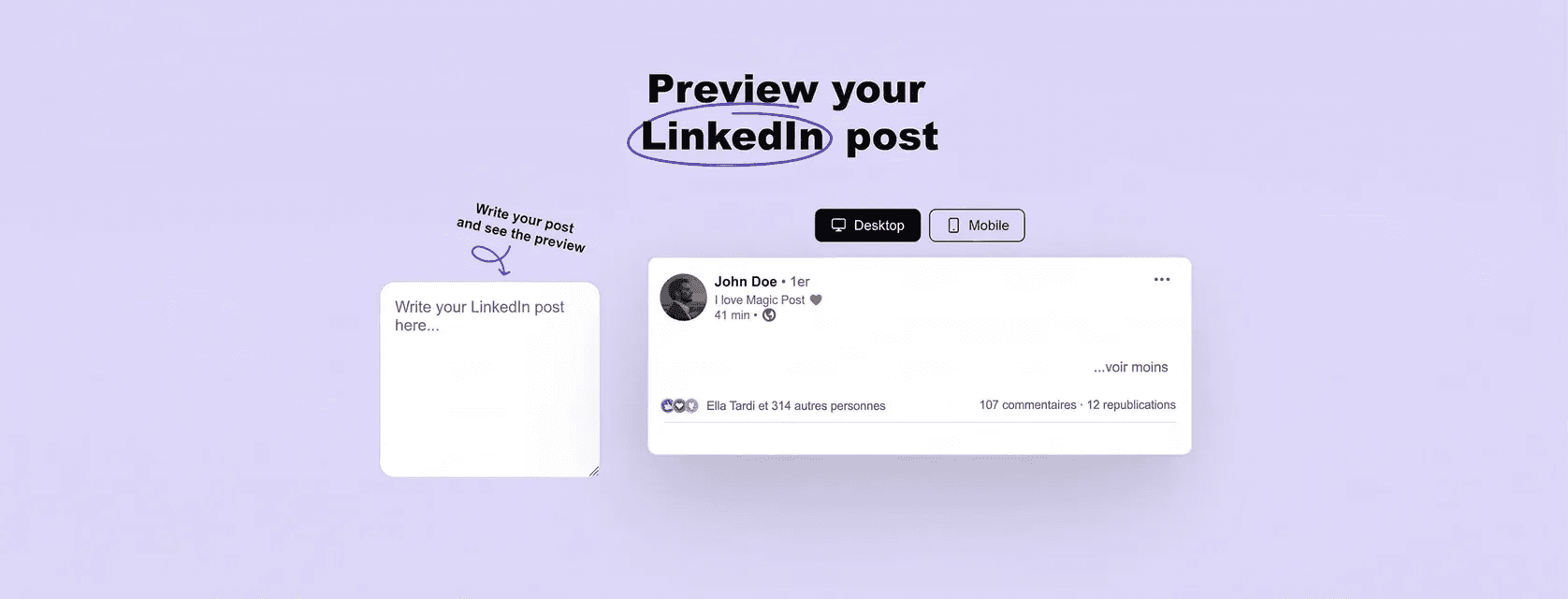
Step 1: Copy and Paste Your Post
Write your post as normal, then copy the full text and paste it into the MagicPost previewer. You don’t need to adjust the format; paste it exactly as you intend to publish it.
Step 2: Check the Desktop and Mobile Views
The previewer immediately shows you how your post renders on both desktop and mobile. Check that your line breaks are intentional, your hook is fully visible before the cutoff, and nothing looks cramped or misaligned on the smaller screen.
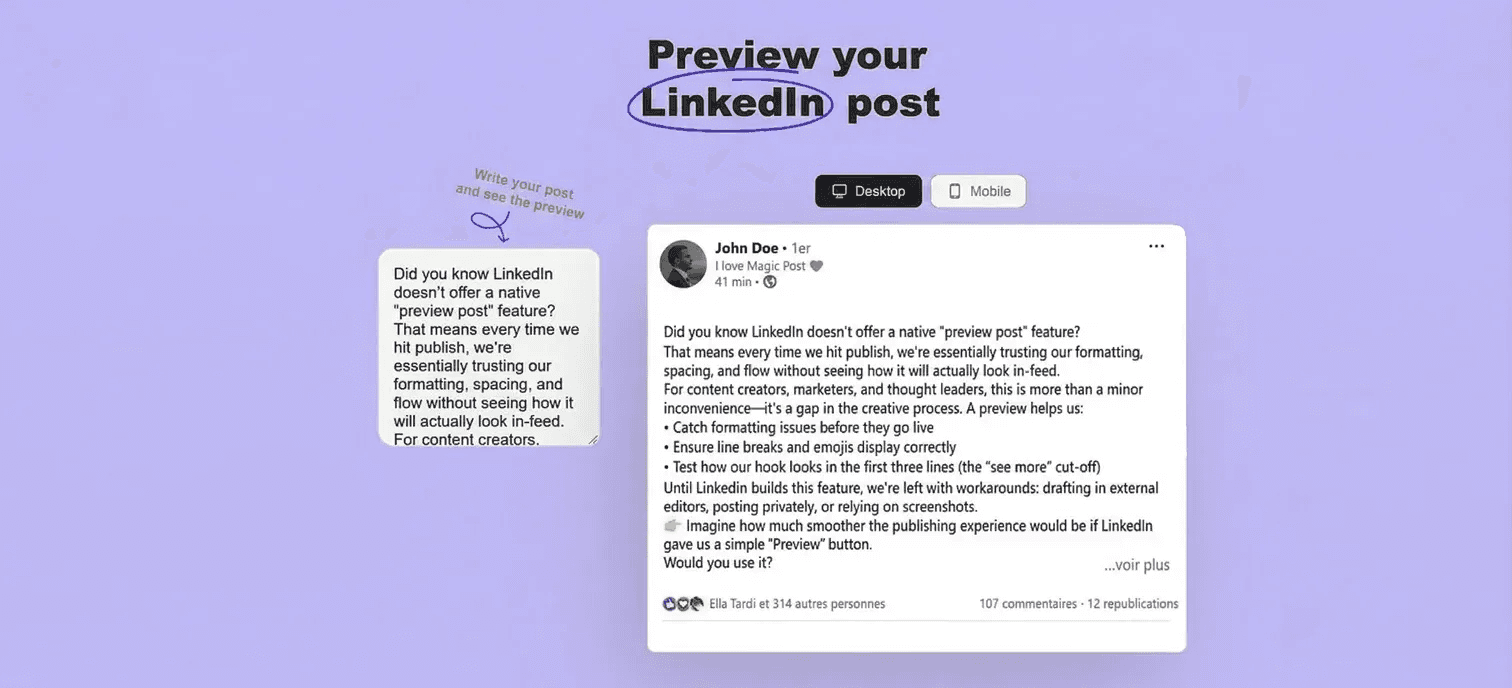
Step 3: Verify the “See More” Cutoff
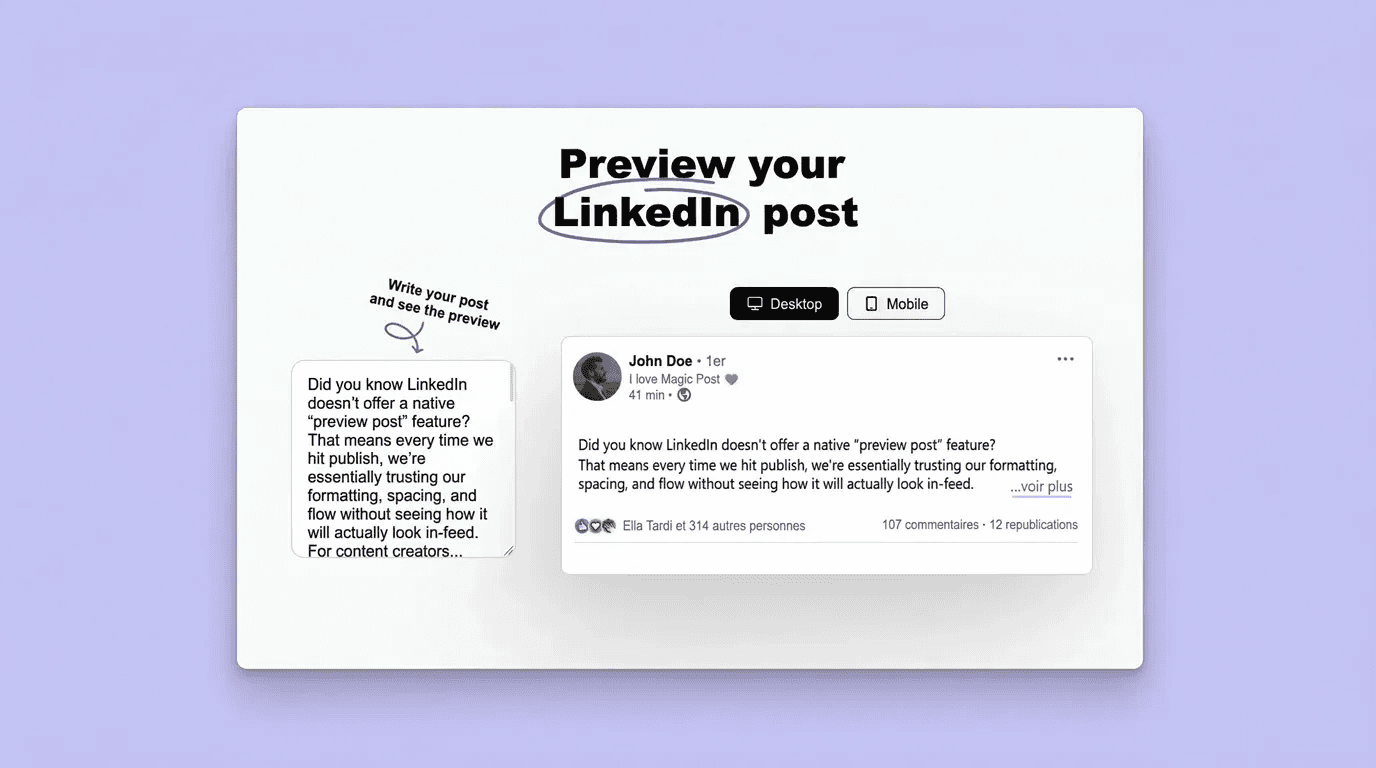
The previewer shows you exactly where LinkedIn truncates your post. Your hook (the first one or two lines) needs to be fully visible and compelling enough to earn the click.
If the cutoff lands mid-sentence or cuts off before the payoff, adjust the structure before publishing.
💡 Pro Tip: If you're signed into MagicPost, the previewer also shows you how your post looks with an attached image, video, or carousel, not just plain text. It’s worth using for any post with media.
LinkedIn Post Preview Best Practices
Keep these practices in mind while drafting your next LinkedIn post.
Keep Your Hook Short and Self-Contained
Your hook should land in one sentence or two at most. It needs to be short enough to display fully before the "See more" cut and specific enough that skimming readers immediately understand what they're getting if they click through.
Check Mobile Every Time
More than 57% of LinkedIn traffic comes from mobile. A post with careful formatting on desktop can look like a wall of text on a phone if your paragraphs are too long. MagicPost's previewer makes this check instant; there's no reason to skip it.
Use Correct Image Dimensions
LinkedIn recommends 1200 x 627 px for link post images and 1080 x 1080 px for square post images. Portrait images (1080 x 1350 px) tend to take up more feed real estate and perform well on mobile.
Check your image in the preview before publishing. If it's cropping unexpectedly, resize it before you go live.
Read It Out Loud Before Publishing
This isn't about the preview tool; it's about the content. Reading your post aloud before previewing it catches awkward phrasing, run-on sentences, and rhythm issues that spellcheck misses. Do this before you even open the previewer.
If your post uses LinkedIn text formatting (bold, italics, or special characters), check that those render correctly in the preview too. Unicode formatting occasionally displays inconsistently depending on the device and LinkedIn client version.
Previewing Is the Last Step. MagicPost Handles the Rest
Catching a broken hook or a cropped image before you publish is the easy part. The harder part is consistently showing up on LinkedIn with content worth previewing in the first place.
MagicPost handles the full workflow in one place. Write your post with AI that matches your voice, generate hooks that earn the "See more" click, preview on desktop and mobile before you publish, and schedule it to go live at the right time without switching between four different tools to do it.
If you're spending more time managing the process than actually creating, try MagicPost for free; no credit card is required.
FAQ
Can I preview a LinkedIn post before publishing it?
Not natively. LinkedIn shows a draft view in the post composer, but it only reflects desktop layout and doesn't accurately simulate the "See more" cutoff or mobile rendering. For a complete preview, use MagicPost's free LinkedIn post previewer.
Is there a free LinkedIn preview generator?
Yes. MagicPost's LinkedIn post previewer is completely free and requires no account. Paste your text and instantly see desktop and mobile views with an accurate "See more" simulation.
Why does my LinkedIn post look different on mobile?
LinkedIn applies different layout rules on mobile: paragraph breaks render differently, images crop to different ratios, and the "See more" cutoff can fall at a different point. Always check the mobile view before publishing, especially for posts with images or careful formatting.
Does editing a LinkedIn post affect its performance?
Yes. LinkedIn's algorithm re-evaluates edited posts and typically resets their distribution, which can reduce reach. This is why previewing before publishing is worth the extra minute; it's much harder to fix a post once it's live without a performance cost.
How do I check where the 'See more' cutoff falls?
LinkedIn doesn't show you this accurately in the native draft view. MagicPost's free previewer simulates the cutoff precisely so you can adjust your hook before publishing.
8 Best Employee Advocacy Examples to Follow in 2026
Employee advocacy examples to follow in 2026. See how top companies turn employees into growth channels and drive reach, trust, and pipeline.
LinkedIn Content Strategy Agency: What Do They Actually Do?
Looking for a LinkedIn content strategy agency? Before you hire one, understand what a strategy involves, what agencies do, and when to skip them.
LinkedIn Thought Leadership: How to Build Authority in 2026
LinkedIn thought leadership is about posting content that signals expertise. Here’s what builds authority on LinkedIn in 2026 and how to do it consistently.
How to Make Money on LinkedIn: 12 Tactics That Work in 2026
How to make money on LinkedIn in 2026. 12 proven tactics covering services, affiliate marketing, digital products, sponsored content, and more.
LinkedIn Emojis: How to Boost Engagement (+ Copy-Paste List)
Curious about using LinkedIn emojis to boost engagement on LinkedIn? Here are the ones that work, how many to use, and a full copy-paste reference list.
What Is Employee Advocacy? (2026 Quick Guide)
Turn employees into a scalable growth channel. Increase reach, trust, and inbound leads with a structured employee advocacy strategy.
The 6 Best Employee Advocacy Software in 2026 (Full Review)
Looking for the best employee advocacy software in 2026? We compared MagicPost, Sociabble, DSMN8, and others so you can find the right fit for your team.