" height="26.80529977783203px" id="tymKb8bqC" width="128.00300311279295px"/><path d="M 0 2.417 L 0 0 L 12.909 0 L 12.909 2.417 Z" fill="rgb(126, 78, 253)" height="2.417099999999998px" id="aYr4em6zK" transform="translate(128.341 22.325)" width="12.908999999999992px"/></svg>)

"/><stop offset="1" stop-color="rgb(118, 37, 250)"/></linearGradient></defs><g d="M 19.242 21.22 L 19.362 6.204 L 19.272 6.204 L 13.757 21.22 L 10.161 21.22 L 4.796 6.204 L 4.706 6.204 L 4.825 21.22 L 0 21.22 L 0 0 L 7.283 0 L 12.109 13.607 L 12.229 13.607 L 16.844 0 L 24.247 0 L 24.247 21.22 Z M 26.421 26.113 L 26.421 23.445 L 41.407 23.445 L 41.407 26.113 Z" fill="transparent" height="26.112508199679183px" id="DvfaAIHYn" width="41.40731898311435px"><path d="M 19.242 21.22 L 19.362 6.204 L 19.272 6.204 L 13.757 21.22 L 10.161 21.22 L 4.796 6.204 L 4.706 6.204 L 4.825 21.22 L 0 21.22 L 0 0 L 7.283 0 L 12.109 13.607 L 12.229 13.607 L 16.844 0 L 24.247 0 L 24.247 21.22 Z" fill="rgb(46, 46, 46)" height="21.220180016149442px" id="pLsxRCobd" width="24.247352589074694px"/><path d="M 0 2.668 L 0 0 L 14.986 0 L 14.986 2.668 Z" fill="url(%23yD9d4I5GR-3279285344-linear-gradient)" height="2.6675085048549647px" id="yD9d4I5GR" transform="translate(26.421 23.445)" width="14.986002836263765px"/></g></svg>)

Yasmina Akni Ebourki
Knowing how to cancel LinkedIn Premium should be simple, but like most subscription services, the platform makes it intentionally confusing. Depending on whether you signed up on a desktop, an iPhone, or an Android device, the cancellation steps are entirely different.
If you’re ready to downgrade, here’s the exact, updated process to cancel your LinkedIn subscription in 2026 across all devices, plus a breakdown of how to keep growing your network without paying a monthly fee.
Short Answer: LinkedIn Premium offers enhanced features like profile optimization, InMail, and LinkedIn Learning, but if you’re not benefiting from it anymore, canceling is easy. On desktop, access "Manage Premium Subscription" under your profile settings to cancel. On mobile, use the app’s settings menu for a streamlined process.
What Is LinkedIn Premium?
LinkedIn Premium is the enhanced, paid version of the standard free profile. It’s primarily divided into tiers for job seekers, businesses, and sales professionals.

It provides users with additional functionality, including the following:
InMail credits: The ability to send InMail messages to people who aren’t in your network or are outside of your connections.
Profile analytics: Full visibility into exactly who viewed your profile over the last 365 days.
LinkedIn Learning: Unrestricted access to thousands of educational courses.
Open profile: Allowing anyone on the platform to message you for free.
While these tools sound great on paper, many creators and founders realize they’re paying for features they rarely use. Generating B2B leads on LinkedIn has shifted in 2026. Cold InMails often get ignored, while strong, organic content drives inbound leads for free.
Once you realize organic reach is more powerful than paid features, canceling Premium is the logical next step.
How to Cancel LinkedIn Premium on Desktop
If you’re using your desktop to browse LinkedIn, here’s the exact step-by-step process to end your subscription:
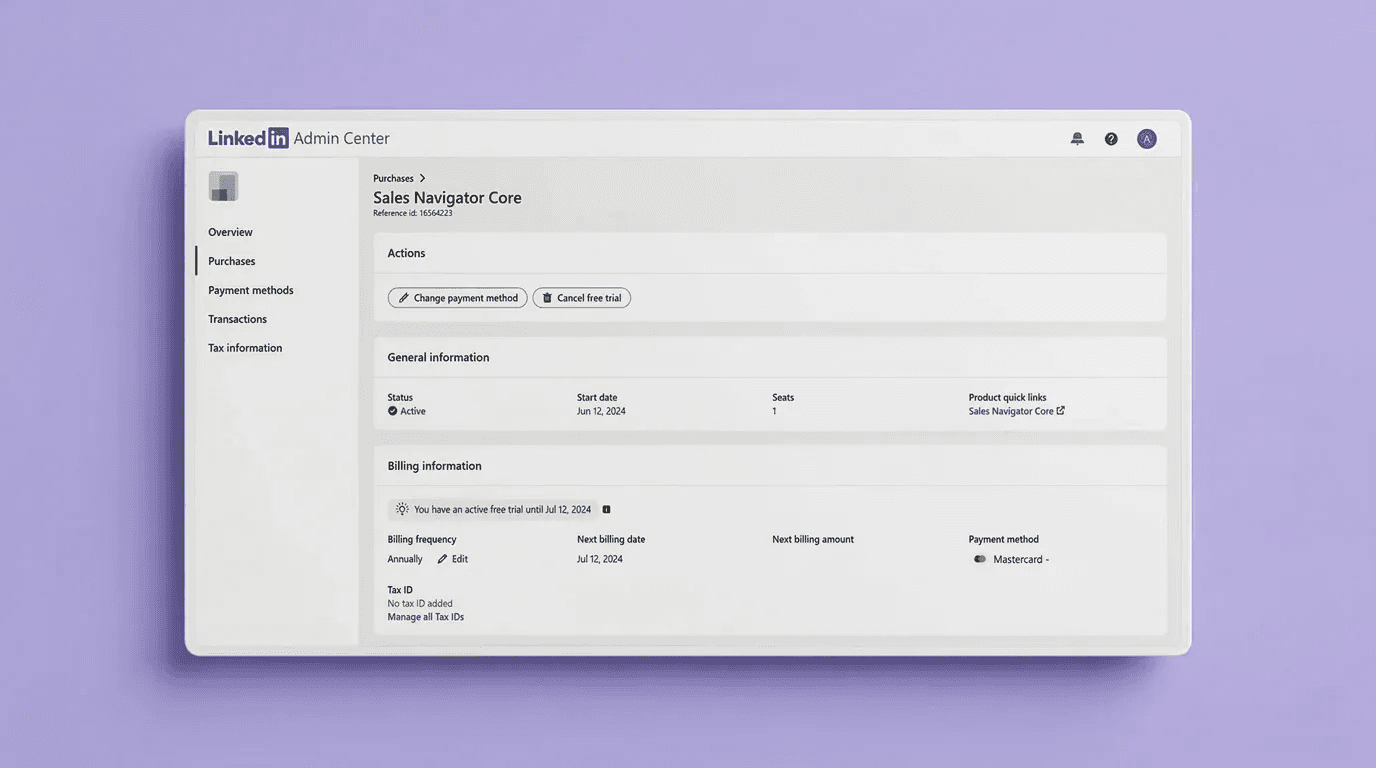
Open your web browser, navigate to LinkedIn, and log in to your account.
Click on the “Me” icon (your profile picture) at the top of the homepage.
In the dropdown menu, select “Premium Features.”
You’ll see a “Subscription Details” button. Click on it, and then select “Manage Subscriptions” to open your overview page.
In the left-hand menu, click on “Purchases.”
Your overview screen will update to show “Active” and “Expired” purchases. Click on your Active purchase.
Locate and click the “Cancel subscription” (or “Cancel free trial”) button.
Click “Continue to cancel” and follow the final on-screen prompts to confirm.
How to Cancel LinkedIn Premium on Mobile
Cancelling via the mobile app is where most users get stuck. Because Apple and Google handle app subscriptions differently, the exact steps depend on your operating system.
Cancelling LinkedIn Premium on Android
If your Android phone is your device of choice and you’d like to cancel your LinkedIn subscription, follow these steps:
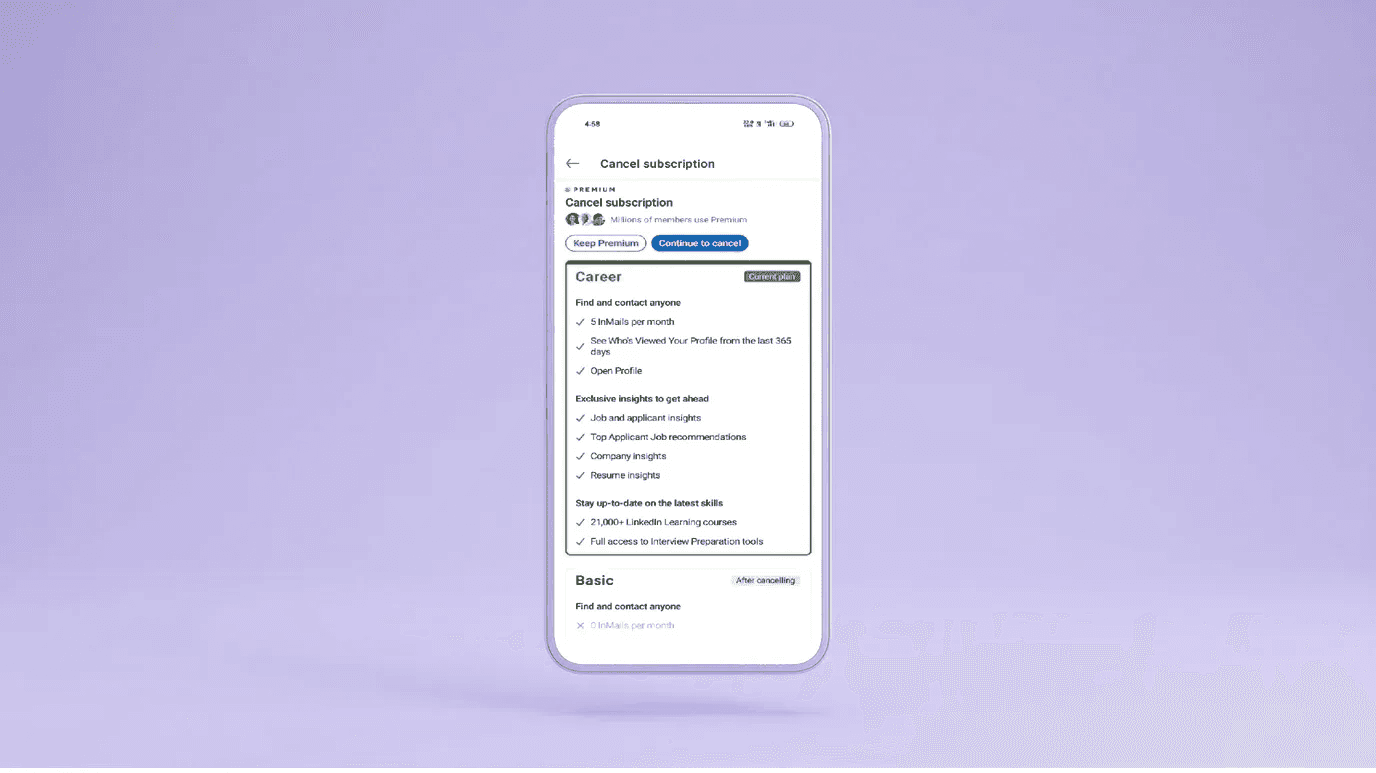
Open the LinkedIn mobile app and tap your profile picture in the top-left corner.
Scroll down and tap on “Settings.”
Under the settings menu, tap on “Account Preferences.”
Scroll down until you find and select “Manage Premium Account.”
Tap “Cancel subscription.”
LinkedIn will prompt you with a reminder of your benefits. Tap “Continue to Cancel.”
You’ll be asked for feedback. Provide it and tap “Confirm Cancellation.”
Important: LinkedIn might offer you a last-minute discount. You must press “Confirm Cancellation” one final time to finish the process.
Cancelling LinkedIn Premium on iOS
If you purchased your LinkedIn Premium subscription via the iOS app, the process is slightly different.
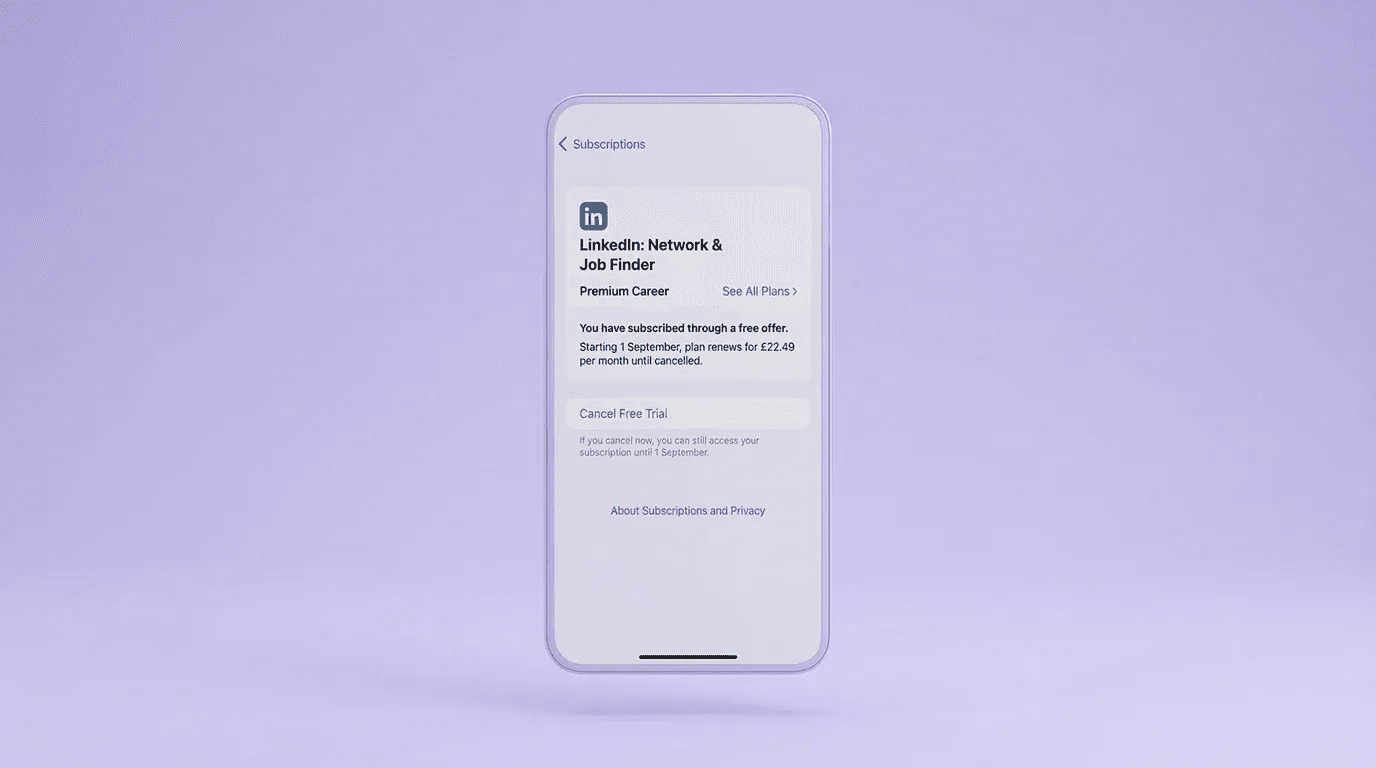
LinkedIn doesn’t actually control your billing. Apple does. Here’s what you need to do differently:
Follow the exact same steps listed above in the LinkedIn app until you reach the final “Confirm Cancellation” screen.
Once you tap confirm, you’ll be automatically redirected to your Apple subscriptions page.
In your Apple settings, locate and tap on LinkedIn.
Tap “Cancel Subscription”
Tap “Confirm” in the Apple pop-up box.
⚠️ Warning: If you simply delete the LinkedIn app from your iPhone, your subscription will not be canceled. You must go through your Apple ID settings.
What Happens to Your Account When You Cancel LinkedIn Premium?
Downgrading your account won’t delete your profile, erase your connections, or remove your past posts. However, you’ll immediately lose access to premium-only features.
Here’s what happens once your billing cycle concludes:
You’ll lose full visibility: You’ll no longer see the complete list of who viewed your profile; it’ll revert to showing only the last few recent viewers.
InMail restrictions: You’ll lose your monthly allotment of Premium InMail credits, meaning you can only directly message your 1st-degree connections.
The gold badge disappears: The Premium badge next to your name will be removed.
LinkedIn Learning access ends: You’ll be locked out of any premium courses you’re taking.
⚠️ Note: When you cancel, your subscription will remain active until the end of your current billing cycle. You won’t be charged for the following period, but you don’t get a prorated refund for the days remaining in your current month unless you’re from Denmark, the Netherlands, or Germany.
Can You Get a Refund for Your LinkedIn Premium Subscription?
The short answer is maybe. LinkedIn’s official refund policy is strict, but there are a few exceptions depending on where you live, how you purchased your plan, and if you have actually used the features.
Here’s how the official LinkedIn refund policy works in 2026:
7-day rule: LinkedIn states that Premium subscriptions may be refundable within 7 days from the date you were charged, but only if you have not used any Premium features (like sending InMails or watching LinkedIn Learning courses) during that time.
Apple iOS exception: If you bought your subscription via the iPhone or iPad app, LinkedIn cannot issue you a refund. All iOS refunds must be issued by Apple. You must contact Apple Support directly and request a refund through their system.
Regional legal exceptions: Depending on your jurisdiction, consumer protection laws might override LinkedIn’s standard policy. If you’re using Premium for personal use (not on behalf of a business), these rules apply:
European Union | EU citizens are entitled to a full refund within 14 days. However, this 14-day clock starts on the first day of your free trial. If your trial was 30 days, you’re already past the refund window when you’re officially billed. |
|---|---|
Denmark and the Netherlands | You can cancel with a one-month notice and receive a prorated refund for any remaining time on your subscription. |
Germany | Similar to Denmark, you can cancel with a one-month notice and get a prorated refund (excluding the first year of an annual subscription). |
India | If your subscription includes a withholding tax, refund requests must be submitted within 180 days. |
SEPA Payments | If you paid via Single Euro Payments Area (SEPA) direct debit, you can claim a refund from your bank within eight weeks of the charge. |
💡 Pro Tip: If you missed the standard 7-day window but have a genuinely unique situation (like an accidental duplicate charge), LinkedIn does allow you to submit your account for a manual exception review through their Help Center.
Can You Still Grow on LinkedIn Without a Premium Subscription?
Is growth on LinkedIn possible without a premium plan? Yes. In fact, relying heavily on premium features like cold InMails is often less effective than building a solid organic presence.
If you have decided to cancel, here’s how you can still maximize your reach on the free version of LinkedIn:
Focus on inbound, not outbound: Instead of paying to message strangers, focus on how to create engaging content on LinkedIn. When you post valuable insights, your target audience will send connection requests to you.
Optimize Your Profile: You don't need AI to make your profile look professional. Write a clear summary, use a high-quality banner, and craft a compelling LinkedIn post headline to attract the right opportunities. Use our free LinkedIn Profile Reviewer to get feedback and actionable insights!
Engage Consistently: The algorithm rewards users who participate. Leave thoughtful comments on industry leaders' posts and engage in relevant groups.
How Does MagicPost Replace the Need for LinkedIn Premium?
Many users buy LinkedIn Premium because they want more visibility, but they quickly realize that paying for a gold badge doesn’t guarantee an audience. Consistent, high-quality content does.
Instead of paying a massive monthly fee just to send cold messages, smart creators use MagicPost to automate their organic growth.
Feature Goal | With LinkedIn Premium | With MagicPost |
|---|---|---|
Gaining Visibility | Hoping people click on your profile after seeing your Premium badge. | Automatically scheduling 3 to 5 high-quality posts per week to dominate the feed. |
Writing Content | Staring at a blank screen on the free native editor. | Using the LinkedIn Post Idea Generator and AI writer to draft weeks of content in minutes. |
Capturing Attention | Sending generic InMails that get ignored. | Using the LinkedIn Hooks Generator to write scroll-stopping opening lines. |
Formatting | Manually trying to make posts readable. | Using the built-in Text Formatter for clean, bold, and italicized text. |
MagicPost connects your content calendar directly to the tools that help you write, format, and publish so you can focus your efforts on generating leads without relying on expensive premium subscriptions.
Try MagicPost for free; no credit card is required. Start your free trial and build an organic LinkedIn presence that actually converts.
FAQ
Can I get a refund if I forget to cancel my LinkedIn Premium free trial?
Generally, no. LinkedIn's standard policy states they do not offer refunds once the billing cycle has started. However, if you haven't used any Premium features, you may be eligible for a refund if you request it within 7 days of the charge. If you live in certain regions (like the EU, Denmark, or Germany), you may have additional legal protections for prorated refunds.
Do I lose my connections when I cancel LinkedIn Premium?
No. Canceling your Premium subscription doesn’t affect your network. You’ll keep all of your 1st-degree connections, your published posts, and your saved articles. Your account simply reverts to the standard, free version of LinkedIn.
Why can't I find the cancel button on my mobile app?
If you’re using an iPhone or iPad and can’t find the cancellation option inside the LinkedIn app, it’s because your billing is managed by Apple. You must go to your iPhone's Settings > [Your Name] > Subscriptions > LinkedIn to cancel it.
Can I pause my LinkedIn Premium subscription instead of canceling?
No, LinkedIn currently doesn’t offer a feature to temporarily "pause" a premium subscription. If you no longer wish to pay, you must fully cancel your plan. You can always re-upgrade your account in the future if you decide you need the premium features again.
8 Best Employee Advocacy Examples to Follow in 2026
Employee advocacy examples to follow in 2026. See how top companies turn employees into growth channels and drive reach, trust, and pipeline.
LinkedIn Content Strategy Agency: What Do They Actually Do?
Looking for a LinkedIn content strategy agency? Before you hire one, understand what a strategy involves, what agencies do, and when to skip them.
LinkedIn Thought Leadership: How to Build Authority in 2026
LinkedIn thought leadership is about posting content that signals expertise. Here’s what builds authority on LinkedIn in 2026 and how to do it consistently.
How to Make Money on LinkedIn: 12 Tactics That Work in 2026
How to make money on LinkedIn in 2026. 12 proven tactics covering services, affiliate marketing, digital products, sponsored content, and more.
LinkedIn Emojis: How to Boost Engagement (+ Copy-Paste List)
Curious about using LinkedIn emojis to boost engagement on LinkedIn? Here are the ones that work, how many to use, and a full copy-paste reference list.
What Is Employee Advocacy? (2026 Quick Guide)
Turn employees into a scalable growth channel. Increase reach, trust, and inbound leads with a structured employee advocacy strategy.
The 6 Best Employee Advocacy Software in 2026 (Full Review)
Looking for the best employee advocacy software in 2026? We compared MagicPost, Sociabble, DSMN8, and others so you can find the right fit for your team.